 English
 Español
 Tiếng Việt
 Deutsch
 Français
 Português
 Polski
 Nederlands
 Italiano
 Svenska
 Norsk
 Dansk
 Suomi
 Čeština
 हिन्दी
 العربية
To inspect cleaning work without visiting every account, give each night shift two things on the phone: a to-do list of the tasks, and a short inspection form that ends with photos and the crew lead’s signature. The crew works the list and sends the form before clocking out. You read both from the office the next morning.
Why the supervisor’s car is not enough
A supervisor can be at one account at a time, and cleaning happens after the client’s people go home. Most accounts are checked after the fact, the morning a client emails about the restroom on the fourth floor. By then you have a complaint and nothing to put next to it.
A remote inspection does not need to be clever. It needs three things you can read at 7 AM: what the crew was asked to do, whether they did it, and what the place looked like when they left.
Step 1: Turn your checklist into a shift to-do list
You already have a list: restrooms, floors, trash, break room, supplies. Write it as a shift to-do list in TimeGO, for the job or for the cleaner.
Mark the few tasks that must never be skipped as required. The shift to-do list help article explains how the app tracks them.
Keep the list to what fits in the hours the crew has. A 30-line list for a four-hour shift gets ticked from the parking lot. Twelve lines that match the job get read.
If you have no list yet, start from the free cleaning inspection checklist. It is grouped the way a supervisor walks a building: entrances and lobby, restrooms, offices and common areas, closing. Print it, cross out what does not apply to the account, and type what is left into the app.
Step 2: Build a short inspection form
With the form builder you make your own form in the web dashboard. Fields can be text, a date, a dropdown, a checkbox or a toggle, and a form can ask for photos, files and a signature. Submissions are unlimited, so the same form can run every night at every account.
A form the crew lead can finish in three minutes:
- Account and area (dropdown).
- A photo of each restroom after cleaning.
- A photo of the one area this client cares about most: the lobby floor, the conference room, the kitchen.
- Anything that needs a return visit: a broken dispenser, a stain that did not come up, a supply that ran out.
- The crew lead’s signature.
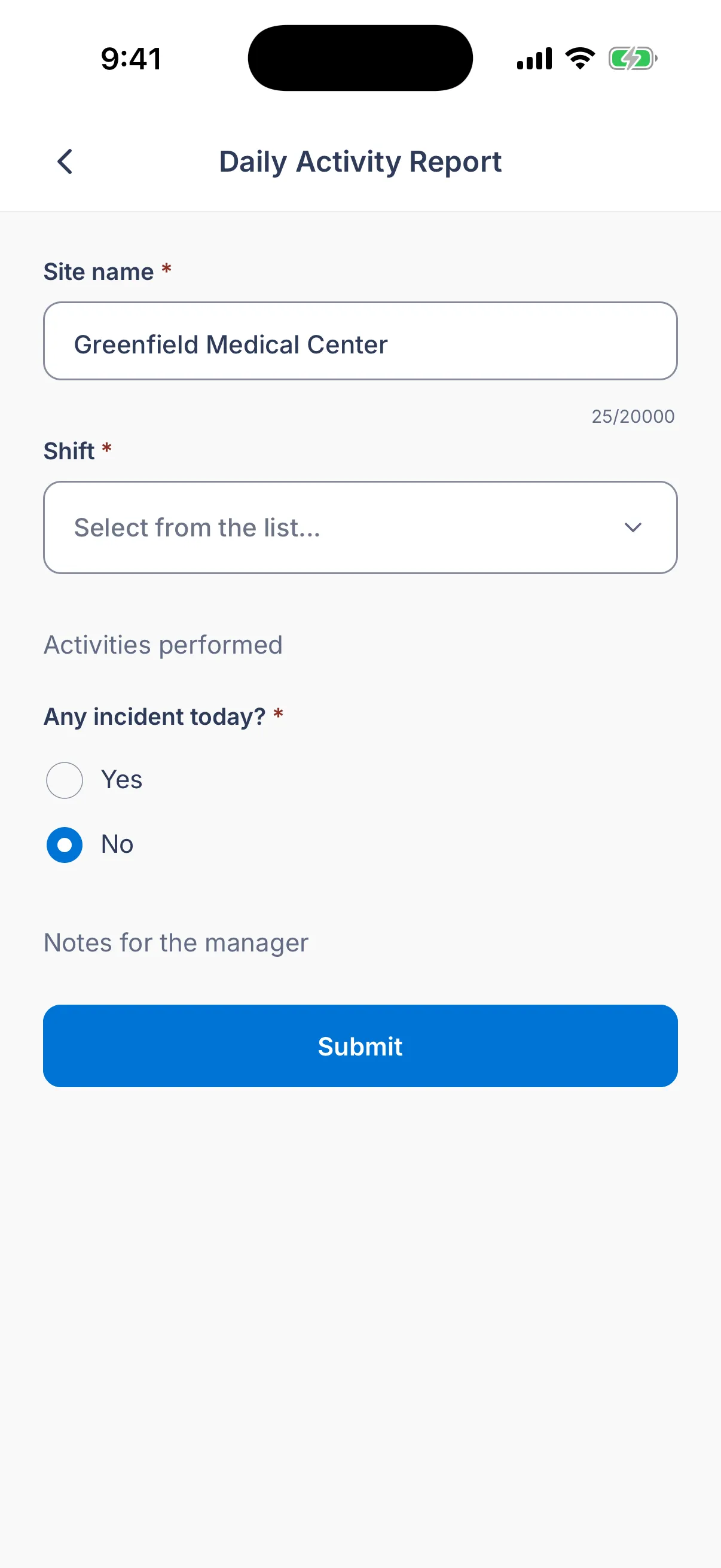
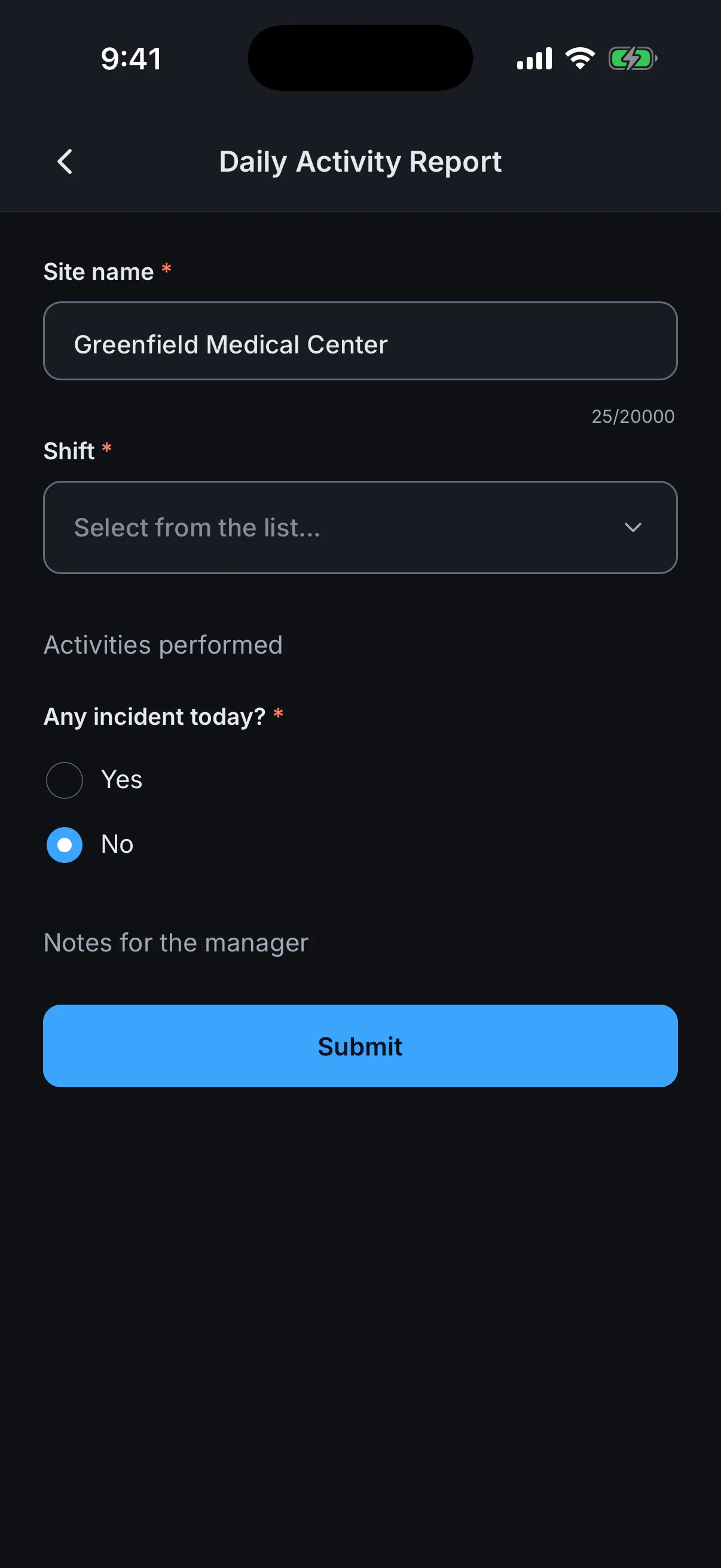 A form as the cleaner sees it. The same builder makes an inspection form: swap the questions, keep it short.
Use one form for every account and change only the “area this client cares about” line. The crew learns one form, and you learn to read one form fast. Custom forms are on the Pro plan.
Step 3: Tie the form to the visit
A form on its own does not show the crew was at the account. The clock-in does. Each account has a geofence, and the app uses GPS at clock-in.
If a client wants proof floor by floor, add a QR code or NFC tag on each floor and have the cleaner scan it. That is optional. For most accounts the clock-in, the list and the photos are enough.
Step 4: Read the results in the morning
- Open the account that complained most recently first. If the restroom photo shows a clean floor at 11:40 PM, you have something concrete to send back.
- Look for to-do lists with required tasks left open.
- Read the “needs a return visit” lines and turn each one into a job for today.
- Once a week, scroll through a whole account’s photos. Patterns show up there that a single night hides: the same corner every time, the same dispenser empty on Thursdays.
You can give a client optional access to form results, so they can read the same photos themselves. Some clients like that. Others would rather get a short weekly note from you. Ask.
What the photos will not tell you
A photo shows what the cleaner pointed the phone at. It can leave out a corner, and a floor that was clean at 11 PM can be dirty at 7 AM because the client’s night staff used it. A tick on a list proves only that a box was tapped.
So keep supervisor visits. Use the forms to choose which accounts get them this week, instead of rotating through every building on a fixed schedule. The commercial cleaning page shows how a full night at one account looks in the app, from the confirmed shift to the form at the end.